Auth Settings
Authentication settings control how you log in to GPCORE. This includes your username, email address, password, and two-factor authentication (2FA). These settings are managed through Keycloak, the identity provider used by GPCORE, rather than directly in the panel. You are redirected to Keycloak when making changes, and the updates take effect immediately across all sessions.
Change authentication settings
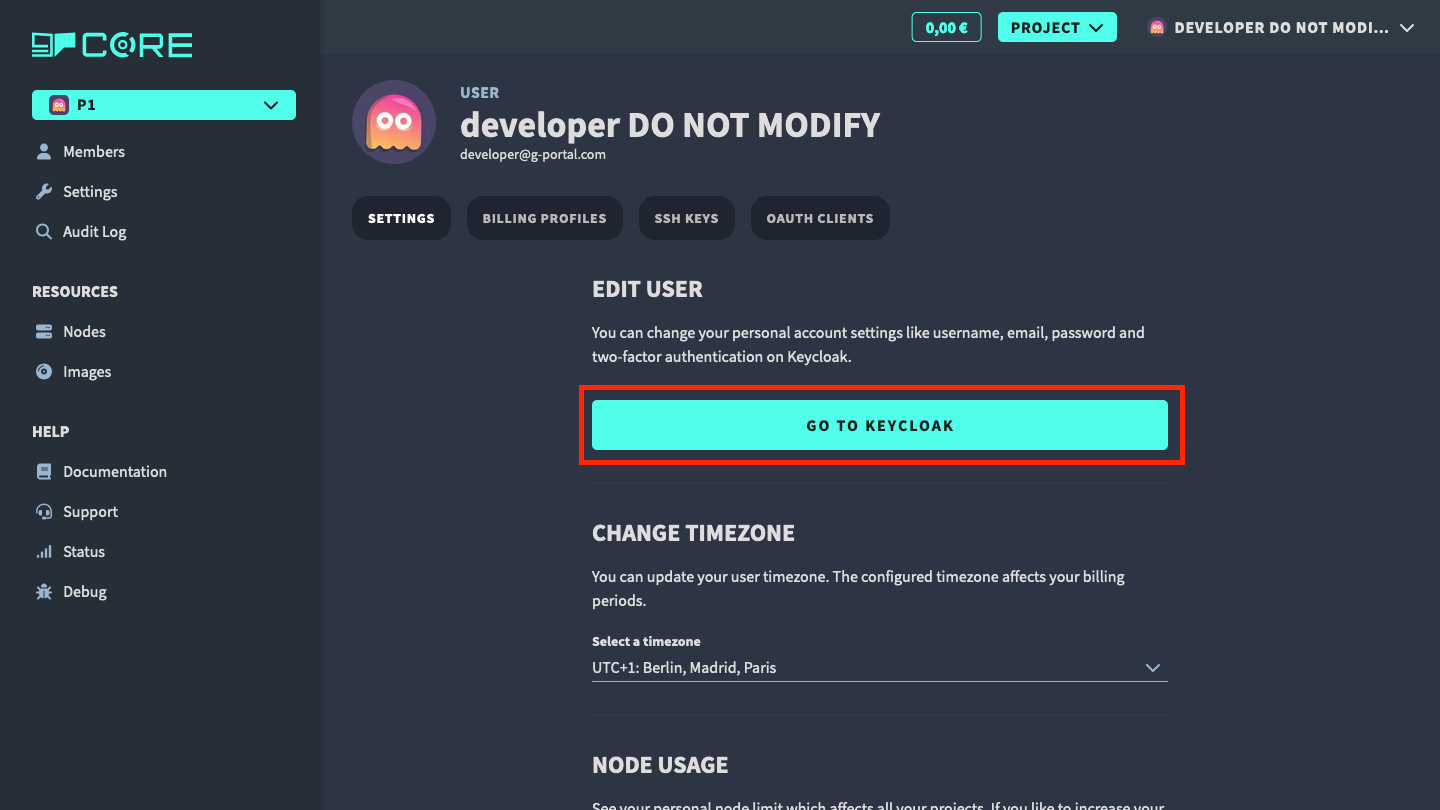
You can change authentication settings by accessing your profile in Keycloak. To do so, click on the Go to Keycloak button.
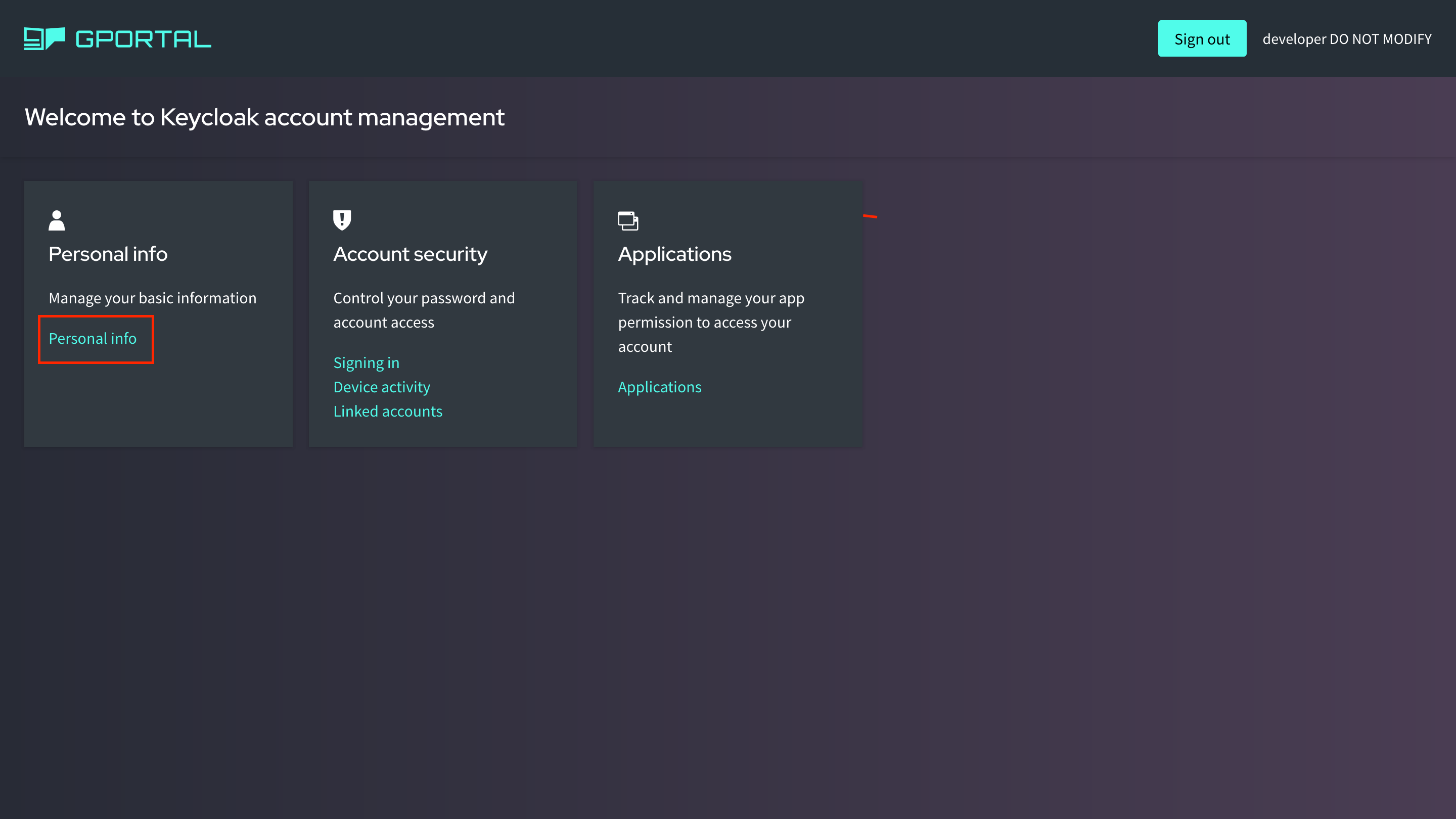
When you are redirected to the Keycloak, you can change your profile settings on the Personal Info page.
Change username/email
In the Personal Info page, you can change your username and email and other personal information.
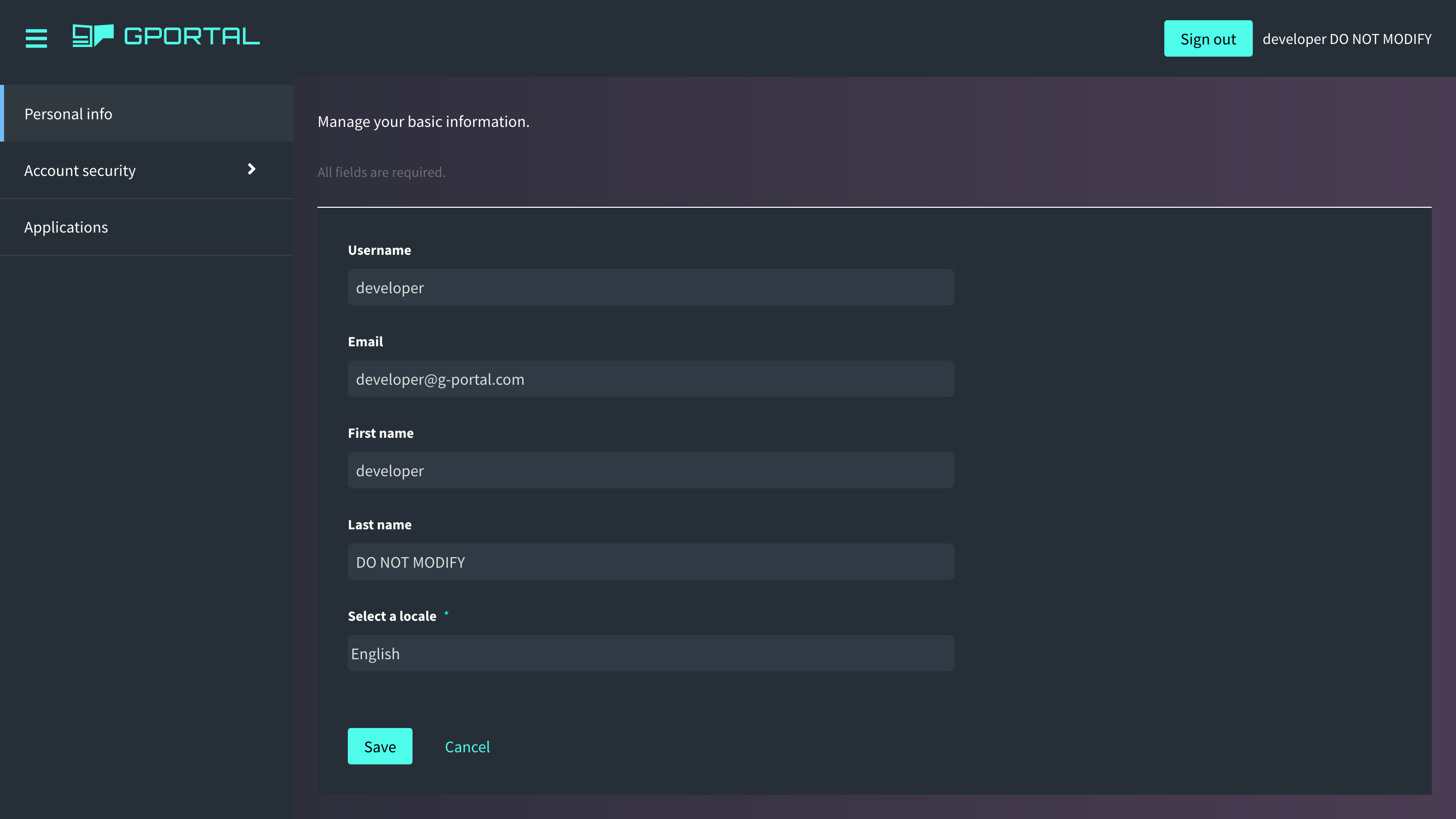
After editing, click on the Save button to save the changes.
Change password
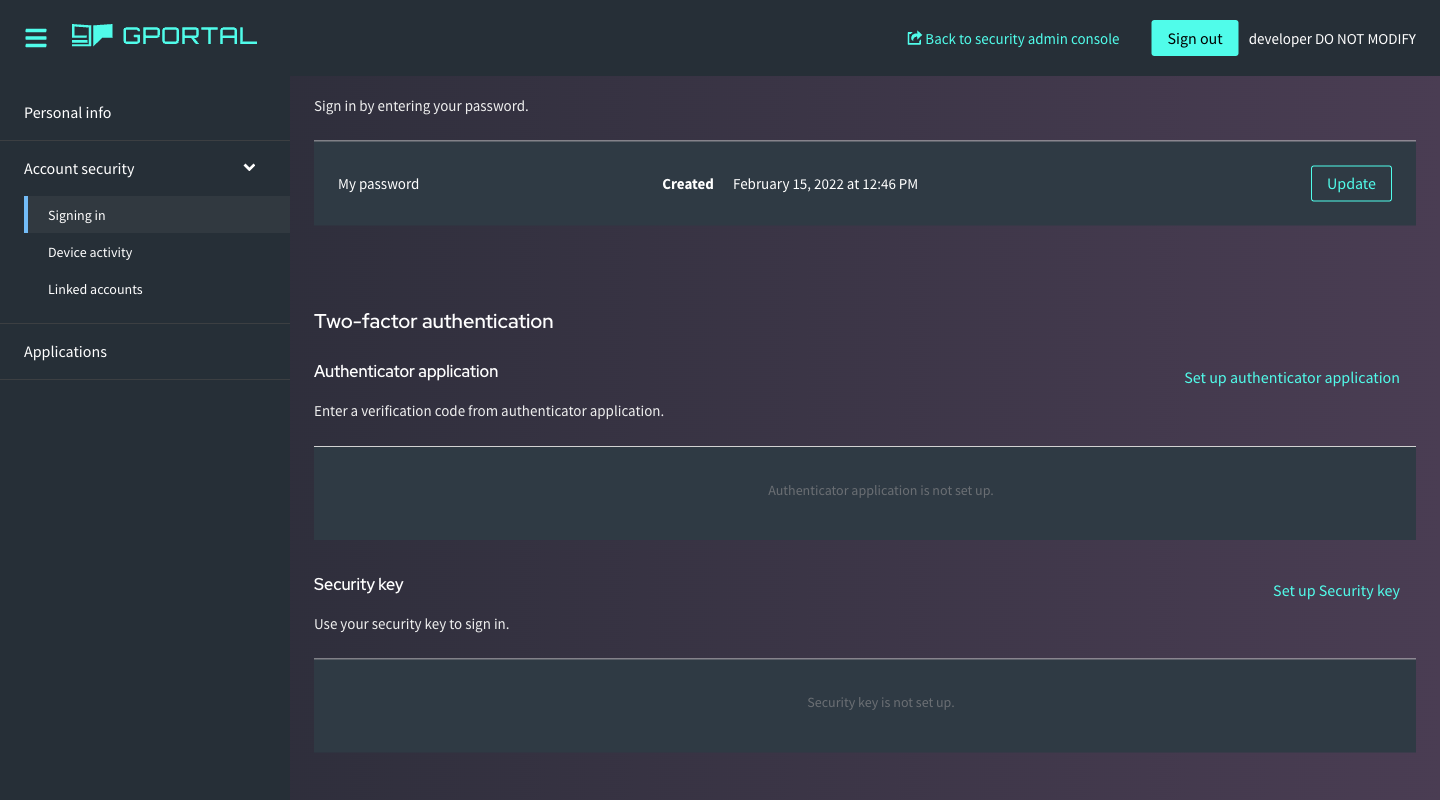
First go the Account security -> Signing in page. Click on Update in the Password section to change your password.
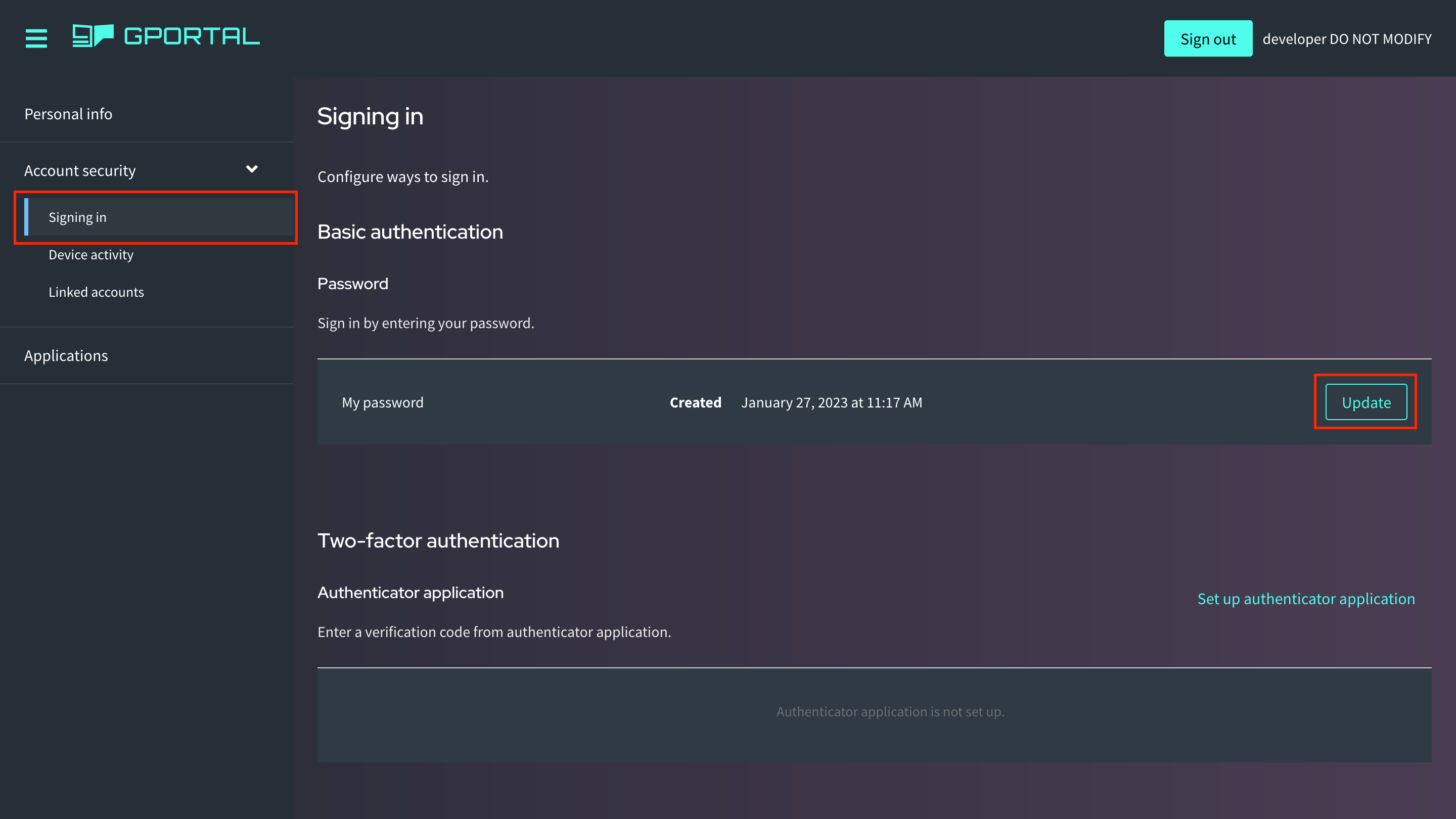
On the next page you will be asked to provide your current password and after that, you can set a new password.
Change 2FA settings
On the same page, where you setup your password, you can also setup 2FA in the Two Factor Authentication section. Click on Set up authenticator application to setup 2FA.
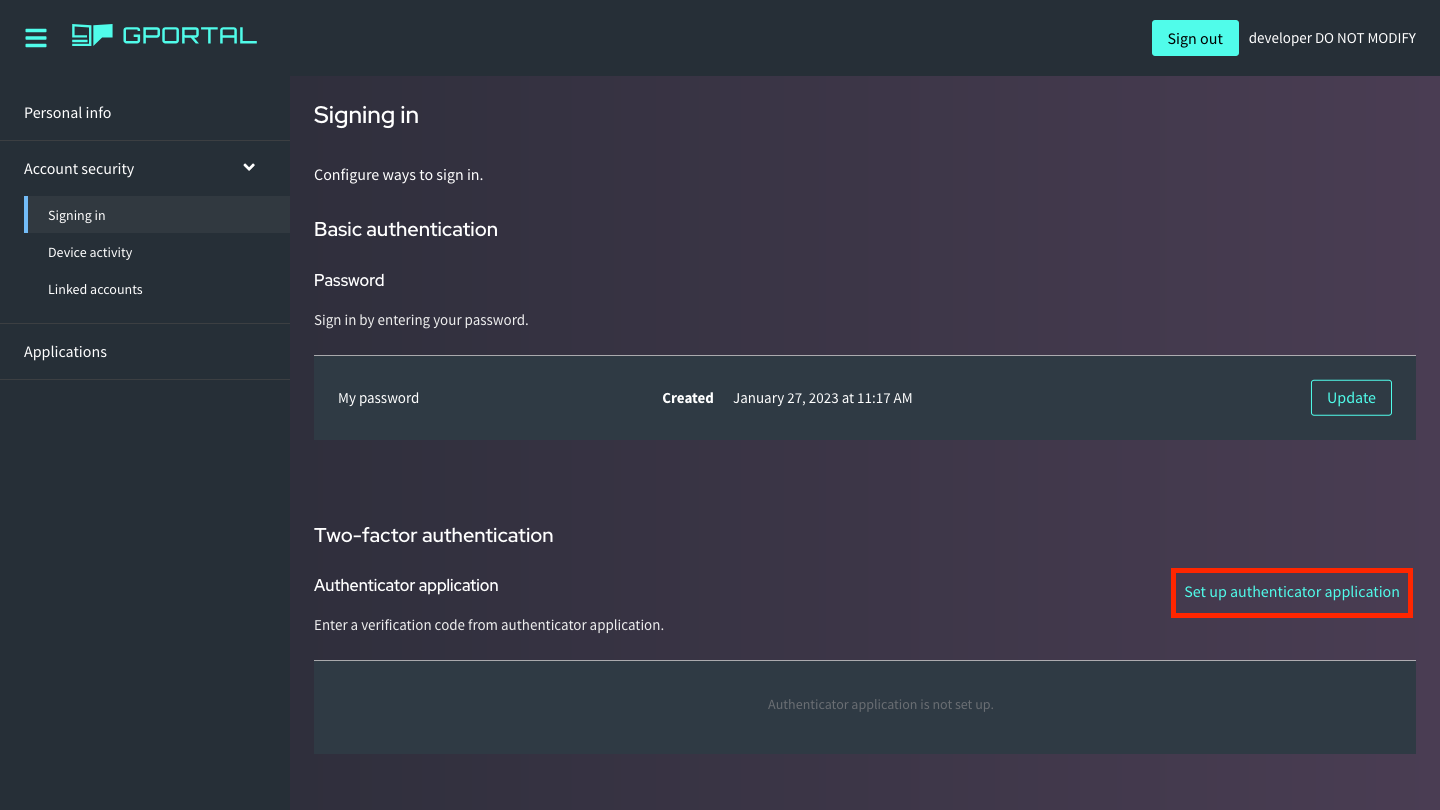
Follow the instructions to finish the setup.
In order to remove 2FA, click on Remove in the Two Factor Authentication section.